
Sometimes a PDF is too big — not in file size, but in content. A 60-page tender document when you only need the pricing schedule on pages 42–48. A combined 12-month bank statement when the loan officer needs just the last 3 months. A textbook PDF when you want to share a single chapter without sending the whole thing.
Splitting a PDF — extracting exactly the pages you need into their own file — should be a two-minute task. With the right tool, it is.
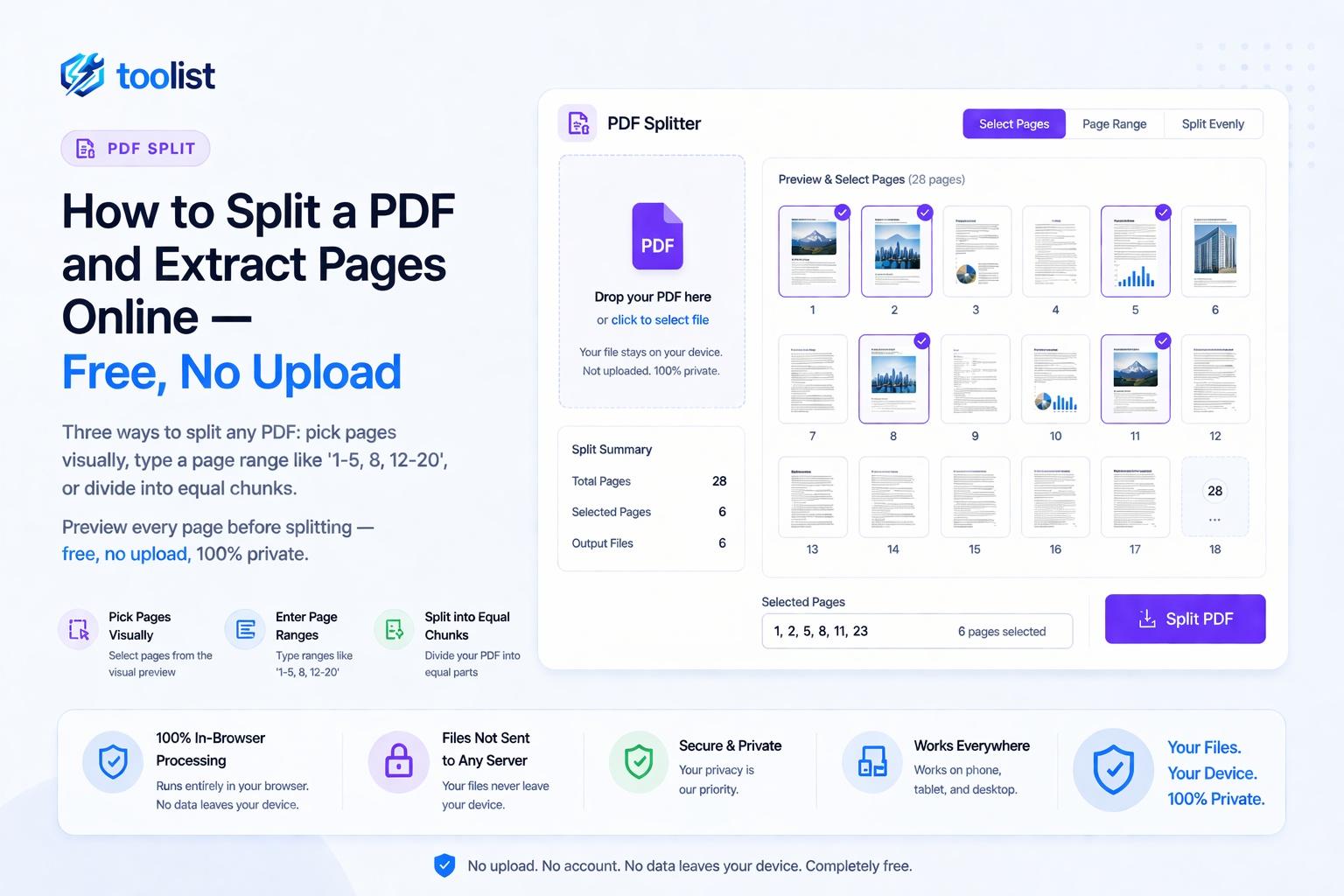
The PDF Split tool on Toolist gives you three ways to split any PDF, all running in your browser with no upload required.
Three splitting modes — choose what fits your situation
Different splitting tasks call for different approaches. Instead of forcing every job through one interface, the tool offers three distinct modes.
Pick Pages — split by sight, not by number
Load your PDF and every page renders as a thumbnail. Click any page to select it. Click again to deselect. Select as many pages as you want, in any order, then click Split & Download.
This mode is ideal when you know which pages you need by looking at them, not by counting. Scanned documents, image-heavy reports, portfolios, and mixed-content PDFs all benefit from visual selection — especially when the document has no clear page-number-to-content mapping.
A 45-page project proposal where you need the cost breakdown table and the timeline graphic? Click those two pages in the thumbnail grid, split, done.
Page Range — split with precision using numbers
Type a range in standard print-dialog syntax — the same format used in Word, Chrome, and every other app that has a Print dialog.
Examples:
1-5— pages 1 through 51, 3, 5— pages 1, 3, and 5 (non-consecutive)1-3, 7, 10-15— pages 1 to 3, then page 7, then pages 10 to 158-— page 8 to the end of the document
This mode is the fastest when you already know the page numbers — for example, when a colleague says "extract pages 12 to 19 from that report" or when a form says "submit only pages 4–6 of this document."
Every N Pages — divide into equal chunks automatically
Enter a number and the tool splits the document into equal-sized segments automatically. A 100-page combined statement at N=4 produces 25 separate 4-page statements. A 20-page exam paper at N=1 produces 20 individual single-page PDFs.
The tool shows you exactly how many output files will be created before you click split — no surprises.
This mode is invaluable in office and administrative workflows: bulk statements, batch exam papers, multi-record documents that were merged upstream and need to be separated downstream.
Visual thumbnails before you commit
All three modes show you a thumbnail of every page in the PDF before you do anything. You can see the actual content of each page — not just a number — and make your selection with confidence.
This preview step matters when the document has no reliable page labels, when you are splitting someone else's file, or when you simply want to verify you are about to extract the right pages before clicking download.
Step by step: split a PDF
- Open the PDF Split tool.
- Drop your PDF onto the upload area or tap Choose PDF to browse. All page thumbnails will render.
- Choose a split mode: Pick Pages, Page Range, or Every N Pages.
- In Pick Pages mode: click any page thumbnail to select it (highlighted in blue). Click again to deselect.
- In Page Range mode: type your range — for example
1-5, 8, 12-20. - In Every N Pages mode: enter the number of pages per chunk.
- Click Split & Download.
- A single-file result downloads as a PDF. Multiple files download as a ZIP archive.
Common situations where PDF splitting is the answer
Submitting specific pages to an official process Government forms, bank portals, and visa applications often ask for specific pages of a longer document. A passport application might ask for "pages 2 and 3 of your utility bill." A loan application might ask for "the last three months of your bank statement." Use Page Range mode to extract exactly those pages without touching the rest.
Sharing part of a confidential document You might have a contract or report that is safe to share in part but not in full. Extract only the relevant pages — the non-confidential section, the summary, or the appendix — and share that PDF instead of sending the whole document.
Separating merged scans A common scanning workflow produces one large merged PDF from a batch scan. Each "document" in the scan is actually a section of the larger file. Use Every N Pages or Pick Pages to separate it back into individual documents.
Extracting a single page for a signature or form A multi-page agreement where only the last page needs to go to a different party. An onboarding form where one section needs to be filled separately. Pick Pages mode, select the one page, split.
Splitting a combined report into chapter files A 200-page annual report that needs to be distributed in sections — financial results to the finance team, operations section to operations, and so on. Use Page Range mode to cut it into the exact sections you need.
Single-file vs. ZIP download
When you extract pages that produce a single output PDF, the file downloads directly as a .pdf.
When the split produces multiple files — from Every N Pages, or from multiple Page Range extractions — the tool bundles all output PDFs into a ZIP archive. Each file is named with the original filename plus a sequential part number. Extract the ZIP on your device and you have all the files, correctly named and ready to use.
No quality loss from splitting
Splitting does not modify any page content. The tool copies pages from the original PDF at the structural level — it does not re-render, re-encode, or recompress anything. Text remains searchable, images keep their original resolution, fonts stay embedded exactly as they were.
The output PDFs are structurally identical to the corresponding pages of the original. There is no generation loss.
Split on a phone without an app
Open the PDF Split page in your phone's browser. Tap Choose PDF to select a file from your storage. Tap page thumbnails to select in Pick Pages mode, or type a range if you know the pages. Tap Split & Download and the result downloads to your device.
No installation, no account, no app store.
Related tools
Once you have split your PDF, you might want to compress it to reduce the file size before sharing. If you need to rearrange pages within a section before splitting, use the PDF Page Organizer first. To go the other direction and combine files instead, use PDF Merge.