
A PDF is not always in the right shape when you receive it. A scanner produces pages in the wrong order. A colleague sends a report with a blank page in the middle. A merged document has a confidential appendix that should not be included in the version you share. A multi-page form comes back with pages 3 and 4 swapped.
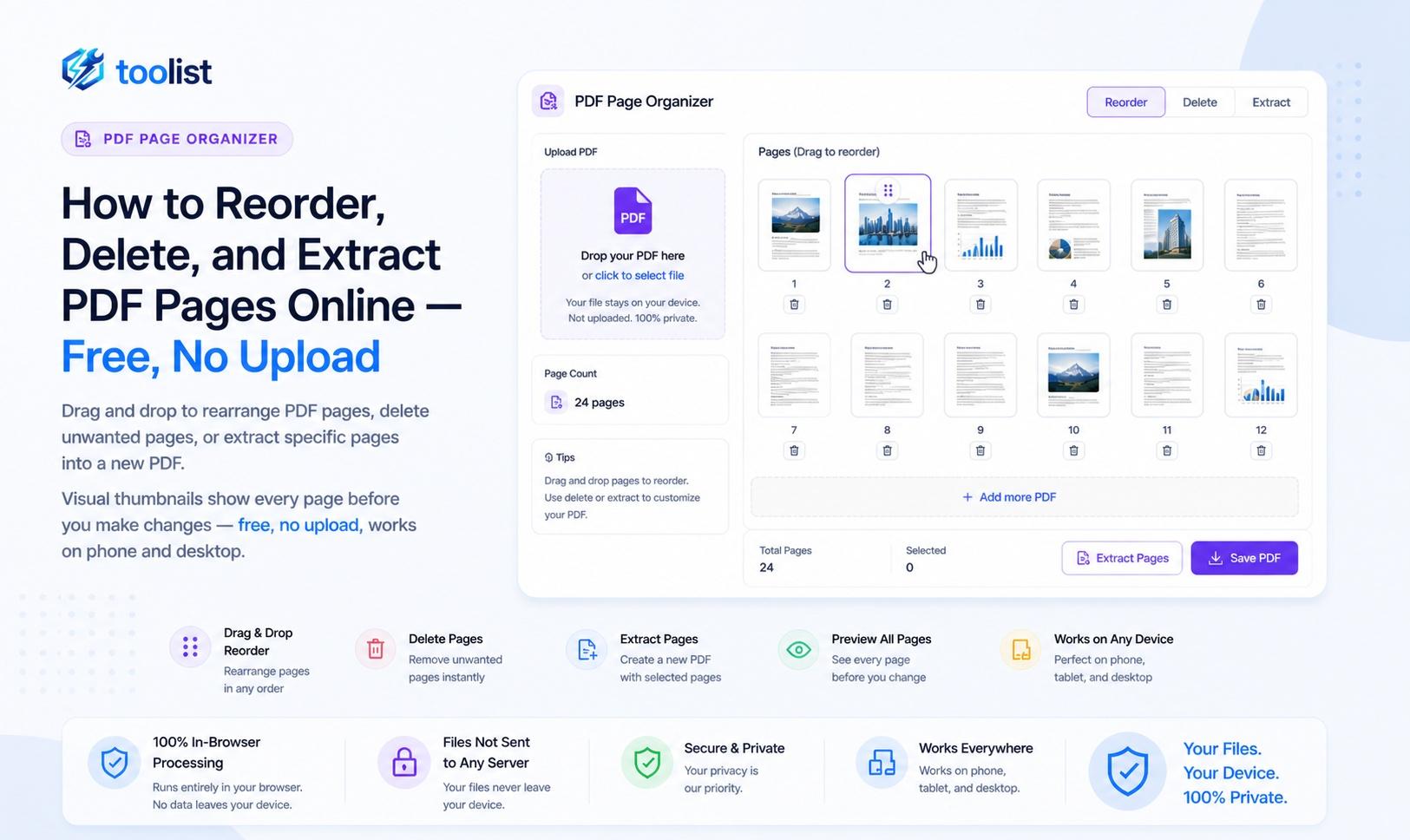
Fixing these problems used to mean opening a paid desktop application or trusting an online service with your document. The PDF Page Organizer on Toolist handles all of it in your browser — drag to reorder, click to delete, select to extract — and your file never leaves your device.
See every page before you touch anything
The organizer renders every page of your PDF as a visual thumbnail the moment you drop the file. Before you make a single change, you can scroll through the entire document and identify exactly what needs moving, deleting, or extracting.
This preview is the core of why visual page management works better than text-based tools. When someone says "move the signature page to the end," you can see which page is the signature page. When you need to delete the blank pages, you can see exactly where they are. When you want to extract the financial appendix, you can select those pages by looking at them rather than remembering their numbers.
Reorder pages with drag and drop
Drag any page thumbnail to a new position in the grid. The other pages shift to accommodate it in real time as you drag.
This works on desktop with a mouse and on mobile with touch. Press and hold a thumbnail briefly on a phone to pick it up, then drag it to the target position.
Some common reordering scenarios:
- a scanner produced pages in reverse order — drag to fix without rescanning
- a presentation deck has the conclusion slide in the middle — drag it to the end
- a combined document has chapters out of sequence — rearrange them in the grid
- a cover page needs to move from the end to the beginning
There is no limit on how many pages you can reorder. Rearrange all 80 pages of a document if needed — drag each one, or build up a mental map from the thumbnails and work through the grid.
Delete pages in one click
Select any page (or multiple pages) and click Delete. The selected pages are removed from the working document immediately. Click Save PDF to download the result.
Nothing about the original file on your device is changed. You are working on a copy in memory. If you remove the wrong pages, click Change file to reload the original and start over.
Common reasons to delete pages:
- blank pages from a scanner (one or two blank pages after every document break)
- a cover sheet that was for internal distribution only
- a draft watermarked version of a page that was replaced
- a confidential appendix that should not appear in the shared version
- duplicate pages from a merge
The Delete action works on any selection, including all pages at once (useful if you want to verify the page count before extracting a specific set).
Extract selected pages as a new PDF
Select the pages you want, then click Extract instead of Delete. The selected pages become a brand-new PDF file that downloads to your device. The original (in memory) is unaffected.
This is distinct from splitting: extraction in the organizer is a manual, visual, one-at-a-time operation. For splitting a document into many chunks or ranges automatically, the PDF Split tool is faster. For extracting a specific hand-picked set of pages — like "the three pages with the charts in this report" — the organizer is the right tool.
Step by step: organize PDF pages
- Open the PDF Page Organizer.
- Drop your PDF onto the upload area or tap Choose PDF.
- Wait for the page thumbnails to render. A progress bar shows the loading status.
- Drag any page thumbnail to a new position to reorder it.
- Tap or click a page to select it — a blue checkmark appears. Click multiple pages to build a selection. Use All or None in the action bar to select or deselect everything.
- With pages selected, click Extract to download a new PDF with only those pages.
- With pages selected, click Delete to remove those pages from the document.
- Click Save PDF to download the full reordered document with your changes applied.
Who uses a PDF page organizer most
Anyone submitting scanned documents Flatbed scanners and phone scanning apps sometimes get the page order wrong, especially with multi-page documents loaded face-down or face-up in the wrong direction. Reorder the pages to match the logical reading order before submitting.
Administrative and office staff Reports and bundles assembled from multiple sources arrive with inconsistencies — blank separators, duplicate summary pages, mis-ordered annexures. The organizer is the tool for quick cleanup before a document goes out.
Students submitting assignments and applications University portals often require documents in a specific order. A combined application document with an out-of-order transcript or a misplaced declaration page is easy to fix with visual drag and drop.
Legal and compliance teams Legal document bundles need to be precise — pages in the correct sequence, no confidential pages in the shared version. The no-upload design means confidential agreements stay private during the cleanup process.
People working with scanned archives Large batches of scanned historical records often need pages reorganized into their correct logical sequence. Working with visual thumbnails is far faster than renaming files or counting pages in a text editor.
Works on mobile — no app needed
The organizer is touch-aware. Press and hold a page thumbnail for a moment until it lifts from the grid, then drag it to the target position. This works in Chrome on Android and Safari on iOS without any app installation.
Tap pages to select them. Tap the action bar buttons to extract or delete. Tap Save PDF to download the result to your phone.
Quality and safety
The tool preserves page content exactly. It copies pages using pdf-lib, which works at the PDF structure level rather than re-rendering pages. There is no quality change to text, images, or vector graphics.
The original file is never modified. Every operation works on a copy in the browser's memory. If anything goes wrong, click Change file and start again from the unmodified original.
Next steps
After organizing your pages, you might want to compress the result to reduce file size. If you need to combine the organized PDF with other files, use PDF Merge. To automatically split the organized document into sections, use PDF Split.