
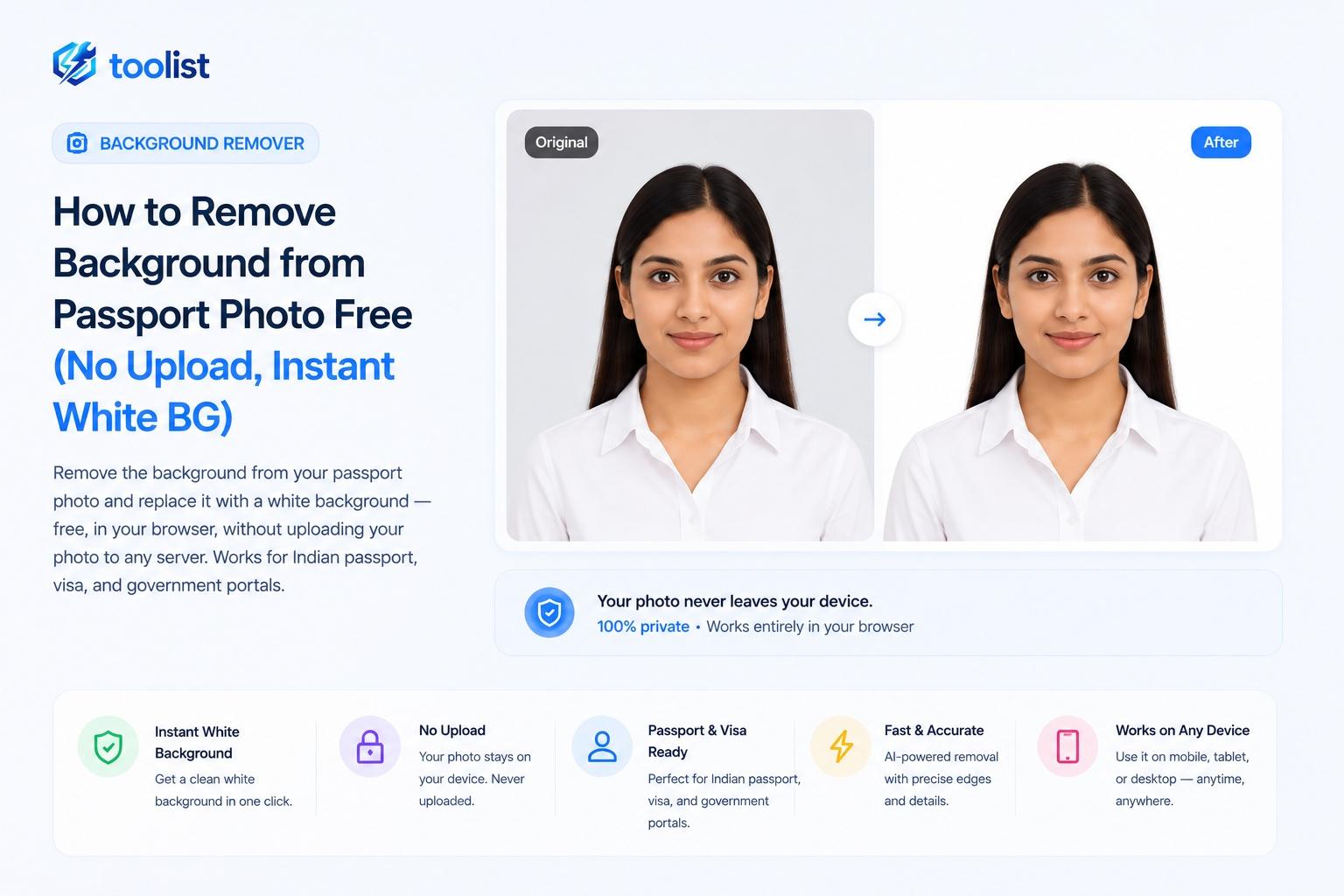
I had a passport application coming up and spent an embarrassing amount of time hunting for a studio that could give me a proper white-background photo within two days. The studio near me charges ₹120 for a set of prints and takes 24 hours. The apps I tried either watermarked the result or kept asking me to sign up. One tool uploaded my face to a server I had never heard of — which felt wrong for a document I was about to submit to the government.
Then I found a tool that does it entirely inside the browser. No upload. No account. No watermark. I tried it on a whim and the result was good enough to submit the same day. That is what this post is about.
Why Passport Photos Need a White Background
Indian passport applications — and most government document portals — require photos with a plain white or light grey background. The Passport Seva portal, NATA, RBI exam applications, state e-District portals, and visa applications all share this requirement.
The problem is that most phone photos are taken against whatever is behind you: a wall, furniture, the outdoors. Even if your studio photo has the right background, editing it yourself later means losing that background and needing a clean white one behind the cutout.
That is the exact gap this tool fills.
How to Remove the Background from a Passport Photo (Step by Step)
The tool is Toolist Background Remover. Everything happens in your browser — nothing is uploaded anywhere.
Step 1: Drop your photo on the Portrait panel
The tool has two panels: Portrait (for people) and General (for products and objects). For passport photos, always use Portrait — it is trained specifically on faces, hair, skin, and clothing edges, and gives noticeably cleaner results than a general-purpose AI.
Drag your photo onto the Portrait panel, or tap to browse from your gallery on mobile.
Step 2: Wait 2 seconds
The AI processes locally. Portrait mode typically finishes in under 2 seconds on a laptop and 2–5 seconds on a mid-range phone. No progress bar spinning while a server somewhere uploads and compresses your face — it just finishes.
Step 3: Check the edges with the comparison slider
A before-and-after slider appears. Drag it left and right to compare your original photo with the cutout. Pay attention to:
- Hairline edges — are any strands left out or is the boundary too tight?
- Shoulders — is the clothing edge clean?
- Jaw and ear — is there any background colour bleeding through?
If the result looks clean here, you are almost done.
Step 4: Tune the edges if needed
Tap Adjust to open the edge controls. For passport photos, the most useful settings are:
- Soft edge mode — feathered edges that blend naturally, good for hair
- Smooth+ — adds an extra blur pass, useful when the hair edge looks slightly jagged
- Cutoff slider — increases or decreases how aggressively the AI cuts the subject boundary
- Softness slider — controls how much the edge fades vs. stays hard
Most well-lit photos need no adjustment at all. These controls exist for trickier cases — dark hair against a dark wall, flyaway strands, glasses with a reflection.
Step 5: Set the background to White
Tap Matte and choose White. The preview immediately shows your cutout on a white background so you can judge whether it would pass inspection on a form. Look for:
- Any leftover coloured fringe from the original background
- Shoulders and chin fully visible without floating artefacts
- Hair edge that reads as natural, not jagged or blurry
If something looks off, go back to Adjust and fine-tune before downloading.
Step 6: Download
Tap Download PNG. Because you selected White in Matte, the white background is baked directly into the file — you get a flat JPEG-ready PNG, not a transparent cutout. Submit it as-is, or open it in any photo viewer to print.
Getting the Right Dimensions for Indian Passport Submission
The downloaded photo is a full-resolution PNG with a white background. Before submitting to the Passport Seva portal or printing, you need to resize to the official dimensions:
| Requirement | Value | |---|---| | Size | 35 × 45 mm | | Pixels at 300 DPI | 413 × 531 px | | Background | White | | File format | JPEG | | Max file size | Usually 1 MB on portals |
Use the Image Resizer to crop to exactly 413×531 px. Select the Passport Photo (India) preset — it sets the correct dimensions and fills in white padding if needed. If the portal requires JPEG, use the Image Compressor to convert and reduce size without re-uploading.
Why Not Just Use a Photo Editing App?
Most people reaching for a background remover are not designers. Manually cutting around your own hair in Photoshop takes 15–20 minutes even if you know what you are doing. The free mobile apps that advertise "AI background remove" in two seconds either:
- Add a watermark on the downloaded image
- Require you to pay for "HD" downloads
- Upload your photo to their servers (important concern for ID photos)
- Give usable results only for simple solid-colour backgrounds
The tool I am describing here does none of those things. The AI runs in your browser, the download is clean, and the white background is baked in.
What About Other Government Documents?
The same workflow applies to any ID-photo form that asks for a white background:
- Visa applications — use Portrait mode, set Matte to White, resize to the required dimensions for the specific country's visa portal
- PAN card / Aadhaar update — same approach, NSDL and UIDAI portals accept JPEG
- Exam applications (JEE, NEET, UPSC, NATA) — portrait photo with white background, typically 10–50 KB JPEG; use Image Compressor after resizing
- State e-District portals — caste certificate, income certificate, domicile applications all require similar passport-style photos
Your photo never leaves your device in any of these cases. For sensitive government documents especially, that matters.
Quick Checklist Before Submitting
- [ ] Background is plain white (Matte → White, then downloaded)
- [ ] Face is clearly visible, forehead to chin
- [ ] No hat or dark glasses (unless for religious/medical reasons)
- [ ] Photo is recent (taken within the last 6 months)
- [ ] Dimensions match the portal requirement (use Image Resizer if needed)
- [ ] File format is JPEG if required (use Image Compressor to convert)
- [ ] File size is within the portal's upload limit
The whole process — from dropping your photo to having a ready-to-submit white-background image — takes about two minutes. No studio appointment. No watermark. No sign-up. And nothing uploaded to any server you don't control.