
There is a kind of document task that sounds simple until you try to do it without the right tool: combining multiple PDF files into one. Maybe it is a job application — your CV, cover letter, and qualification certificate all need to be a single PDF. Maybe it is an expense claim — twelve receipts that need to be one attachment. Maybe it is a quarterly report assembled from three separate sections.
Whatever the scenario, the usual options are frustrating: install desktop software, pay for Acrobat, or use an online tool that uploads your documents to a server you know nothing about.
The PDF Merge tool on Toolist does it in your browser — files stay on your device, there is no account, and there is no charge.
Why merging PDFs in the browser changes things
Most PDF merge tools that work online are server-side: you upload your files, the server combines them, and you download the result. That process works fine for publicly available documents. It is not the right approach for contracts, medical records, financial statements, or legal filings — documents where handing a copy to an unknown server is a genuine risk.
Browser-based merging reads your files directly from your device's memory, processes them locally using JavaScript, and hands you the result as a download. Nothing is transmitted. You can verify this yourself by opening your browser's developer tools and watching the Network tab — there is no upload request, because nothing is being uploaded.
What the tool does before you merge
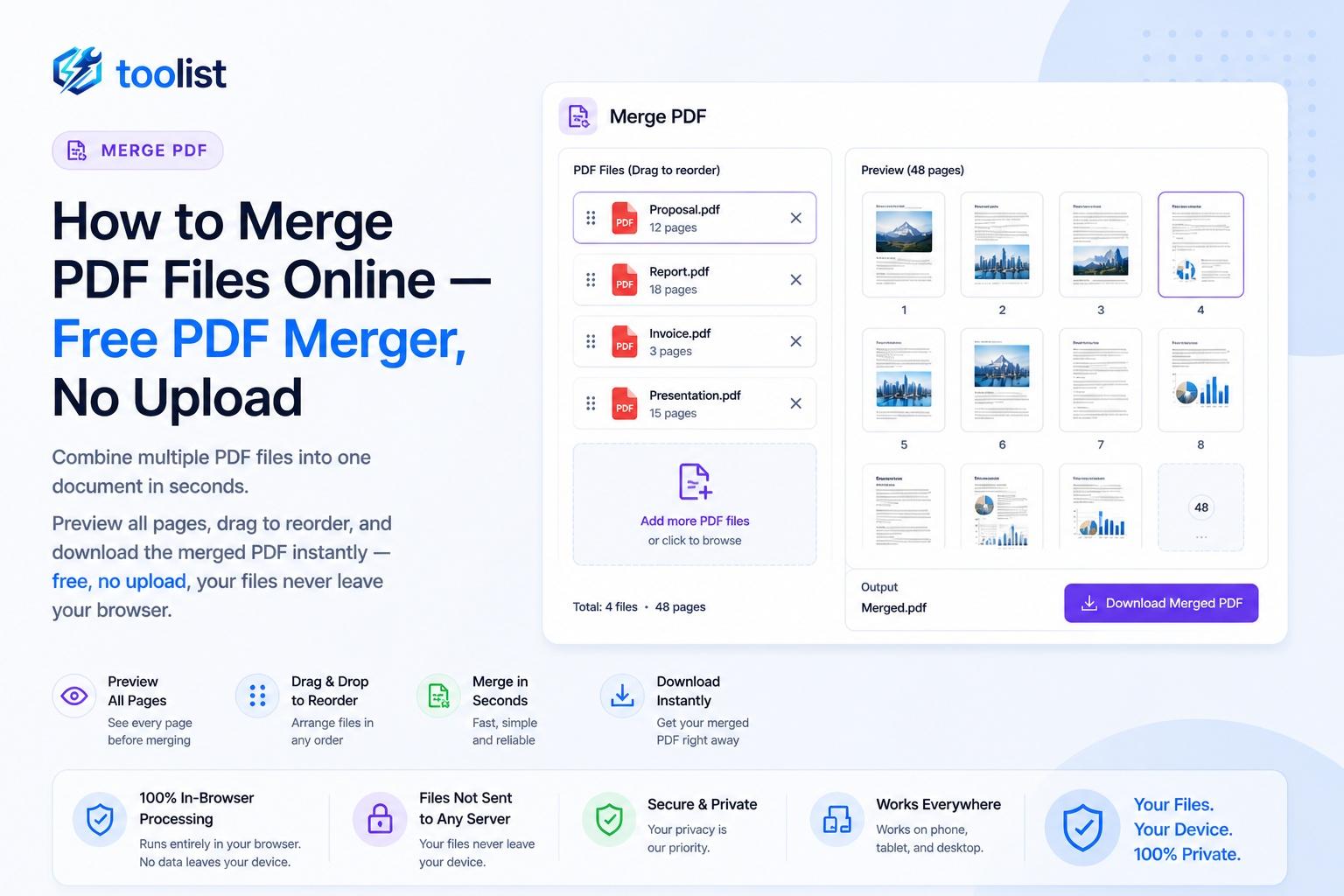
The detail that makes this tool more useful than a plain merge utility: it shows you a thumbnail preview of every page in every document before you merge them.
This matters more than it sounds. Load five PDFs and you might discover:
- one file has a duplicate cover page
- another was scanned in the wrong order
- one document has a blank page at the end
- two files have the same appendix
Catching these before merging saves you from downloading a combined document, finding the problem, fixing the source file, and running through the whole process again. The preview is the step most tools skip.
Drag to set the order
Once your files are loaded, drag the file cards into the order you want them to appear in the merged document. The card at the top becomes pages 1 through N, the card below it continues from there, and so on.
The order you see on screen is exactly the order in the output PDF. There is no configuration step, no dialog box — just drag into position and click merge.
Step by step: merge PDF files
- Open the PDF Merge tool.
- Drop your PDF files onto the upload area — you can drop multiple files at once, or add them one at a time using Add more PDFs.
- Each file loads as a card showing the filename, page count, and file size.
- Click the chevron icon on any card to expand it and see all its page thumbnails.
- Drag the file cards to set the order they will appear in the merged output.
- To remove a file entirely, click the × button on its card.
- Click Merge & Download when the order looks right.
- The merged PDF downloads automatically to your device.
Real situations where PDF merge saves time
Job applications and university admissions Most job portals accept one file attachment. Universities often have the same restriction. Rather than asking a hiring manager or admissions office to open five separate attachments, merge your CV, cover letter, portfolio samples, and certificate scans into a single document before you upload. The reading experience is cleaner and nothing gets missed.
Expense claims and finance submissions Month-end expense reports often mean collecting receipts from different sources — email PDFs, scanned paper receipts, downloaded invoice PDFs. Merge them all into one submission file instead of zipping a folder of individual files. Finance teams and accounting software generally prefer single-file submissions.
Multi-section reports A quarterly business report might be drafted in sections by different people — an executive summary, a data appendix, a financial section. Each section gets exported as a separate PDF. Merge them into the final combined document for distribution, with no need to reformat everything in a single Word file.
Combining scanned pages Flatbed scanners often produce one PDF per page, especially when using the scanner's built-in software. Scan ten pages and you have ten individual PDFs. Merge them into a single multi-page document in a few seconds.
Legal bundles and compliance packages Legal workflows often require bundling multiple documents into a single numbered PDF — the main agreement followed by annexures, supporting letters, and certificates. Because the merge happens in the browser, sensitive legal documents never leave your device.
What is preserved — and what is not
The tool copies pages at the PDF structure level. That means:
Preserved: all text content (searchable), all images at their original resolution, all vector graphics, all fonts.
May not survive the merge: interactive bookmarks that reference page numbers (because page numbers shift when documents are combined), form fields, and cross-document hyperlinks. Pure text and image content is completely unaffected.
If your PDFs do not use complex interactive features, the merged output will look and behave identically to the individual source files.
Merge on a phone without an app
Open the PDF Merge page in your phone's browser. On Android, tap the upload area and select multiple PDFs from your Files app. On iOS, you can use the Files app or share PDFs directly into the browser from other apps. Tap Merge & Download and the combined PDF downloads to your device.
No installation required, no app store, no sign-up.
What to do next
Once merged, you might want to compress the result if the combined file is large, reorder or remove individual pages if anything needs adjusting, or split the merged file into sections later. All of those tools work the same way — in your browser, with no upload.