
Most of the time, a collection of images needs to be a PDF before it can go anywhere. A set of scanned receipts for an expense claim. A series of WhatsApp photos of a signed agreement. A folder of diagram exports that need to be packaged into a single document for a client. Photos of handwritten notes from a meeting. A set of screenshots that need to be submitted as supporting evidence.
Converting images to PDF is one of the most common document tasks people need to do — and one of the most poorly served by the tools that come installed on most devices.
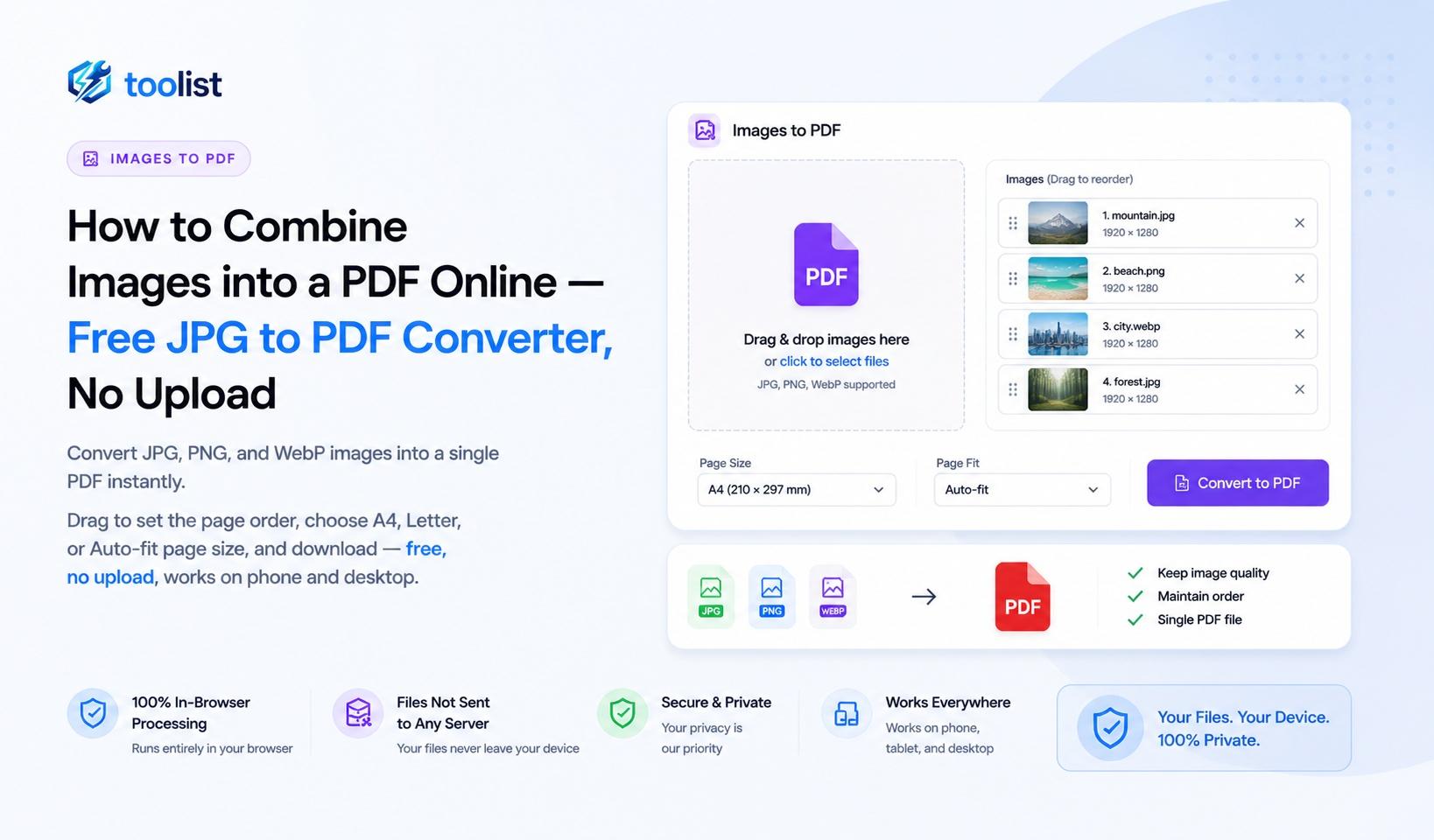
The Images to PDF tool on Toolist does it in your browser. Drop your images, arrange them, choose a page size, and download your PDF in seconds. No upload, no account, no watermarks.
What makes a good image-to-PDF tool
The basic task is simple: take images, create a PDF. But the quality of the result depends on decisions the tool makes (or lets you make):
- Page size — does the image fill the page correctly, or does it float in a sea of whitespace?
- Image quality — is the original image embedded without recompression, or is it degraded?
- Order control — can you set the page order before creating the PDF, or are you stuck with the upload order?
- Orientation handling — does a landscape photo end up on a landscape page, or does it get squashed onto portrait?
- Privacy — is your file being uploaded to a server in the process?
The Toolist tool handles each of these correctly. Your images are embedded at their original quality, you control the order before creating, orientation is detected automatically, and nothing is uploaded.
Supported image formats
JPG / JPEG — the most common photo format. Camera photos, scanned documents, downloaded images — JPG files are embedded directly at their original quality. No recompression occurs.
PNG — screenshots, diagrams, graphics with transparency. PNG is lossless, so every pixel is preserved. Transparent areas in PNG images are rendered on a white background in the PDF.
WebP — a modern web image format. WebP images are internally converted to JPEG at 92% quality before embedding, to ensure compatibility with all PDF readers. Visually, this is lossless for most images.
Three page size options
Choosing the right page size depends on who will read the PDF and how.
A4 — the international standard
A4 (210 × 297 mm) is the paper size used across Europe, Asia, Africa, and most of the world. Choose A4 when the PDF will be printed in most countries, submitted to European or Asian institutions, or when you are not sure which standard applies. Images are scaled to fit the page while maintaining their aspect ratio and centred.
Letter — the US and Canadian standard
Letter (8.5 × 11 inches) is the standard for the United States, Canada, and some Latin American countries. Choose Letter for PDFs intended for printing or institutional submission in North America.
Auto-fit — no whitespace, each page matches the image
Auto-fit sets the PDF page dimensions to exactly match the pixel dimensions of each image. The image fills the entire page — no whitespace, no scaling, no border. Different images can produce different page sizes, which is fine for digital use but may look unusual when printed.
Use Auto-fit for: infographics, posters, photographs where whitespace would be distracting, and cases where you want the PDF to exactly reflect the original image dimensions.
Set the order before you create the PDF
After uploading, each image appears as a card in a thumbnail grid. Drag the cards to set the order in which they will appear as pages in the PDF.
This drag-and-drop step is the one most "quick convert" tools skip — they just take images in the order they were uploaded, which is often not the right order. Here you can arrange them visually before the PDF is created.
If you upload a set of scanned receipts in no particular order, or photos of a document that was photographed one page at a time, drag the thumbnails into the correct sequence before clicking Create PDF.
Orientation is handled automatically
When using A4 or Letter page size, the tool detects whether each image is portrait or landscape and places it on a page of the matching orientation. A landscape photograph goes on a landscape A4 page. A portrait phone screenshot goes on a portrait A4 page.
This means you can mix portrait and landscape images in the same upload and the PDF will handle each one correctly — no rotating images manually, no images appearing sideways or squashed.
Step by step: create a PDF from images
- Open the Images to PDF tool.
- Drop your images onto the upload area, or tap to open your file picker. You can select multiple images at once.
- Each image appears as a thumbnail card.
- Drag the cards to set the order pages will appear in the PDF. Hover over a card and click × to remove an image.
- Choose a page size: A4, Letter, or Auto-fit.
- Click Create PDF. The PDF downloads automatically to your device.
When you need images to become a PDF
Scanned documents — one scan per image When a scanner or scanning app produces individual image files for each page, you end up with a folder of JPGs or PNGs. Drop them all here, put them in order, and download the multi-page PDF. This is the fastest way to reassemble a batch-scanned document.
Expense receipts and invoices Phone photos of paper receipts, downloaded PDF-to-JPG receipts, screenshots of email receipts — combine all of them into one PDF for your expense claim submission. Finance portals and accounting software generally accept one PDF per claim rather than a folder of mixed files.
Signed paper documents photographed with a phone A contract or form was signed on paper and photographed with a phone. The photos need to become a single PDF for email or portal submission. Drop the photos, arrange them by page number, and create the PDF.
WhatsApp or messaging app images Documents shared in chat are often images, not PDFs. Screenshots of a rental agreement, photos of a driving licence, images of a certificate — combine them into a PDF for formal submission.
Meeting notes, whiteboard photos, handwritten content Photos from a meeting that need to be filed or shared as a document. Drop the photos in order, choose A4, and create a clean multi-page PDF for distribution.
Combining diagrams and technical drawings Engineering diagrams, architectural drawings, and technical illustrations exported as PNG files can be packaged into a single PDF for client delivery or archive.
No upload — why it matters for photos
Photos from a phone or camera can contain EXIF metadata — location data, device information, and other personal data embedded in the image file. When you upload photos to a conversion service, that metadata goes with them.
Browser-based conversion reads the image files locally, processes them in memory, and creates the PDF on your device. No image data — including metadata — is transmitted. The PDF downloads directly from your device to your device.
For photos of documents containing personal information — ID cards, medical records, financial statements, signed agreements — this is the only conversion approach that is genuinely private.
After creating the PDF
If the file is large and you need to reduce it, open PDF Compressor and compress the result. If you need to combine the image-based PDF with other PDF files, use PDF Merge. If you want to convert PDF pages back to images later, PDF to Images does the reverse.