
If you have ever tried to email a PDF only to have it bounce back because it is too large, or tried to upload a scan to a government portal only to get a file size error — you already know how annoying PDF compression usually is. Most tools either upload your file to a server (which is a problem when the document contains personal data) or give you one blunt setting with no control over the result.
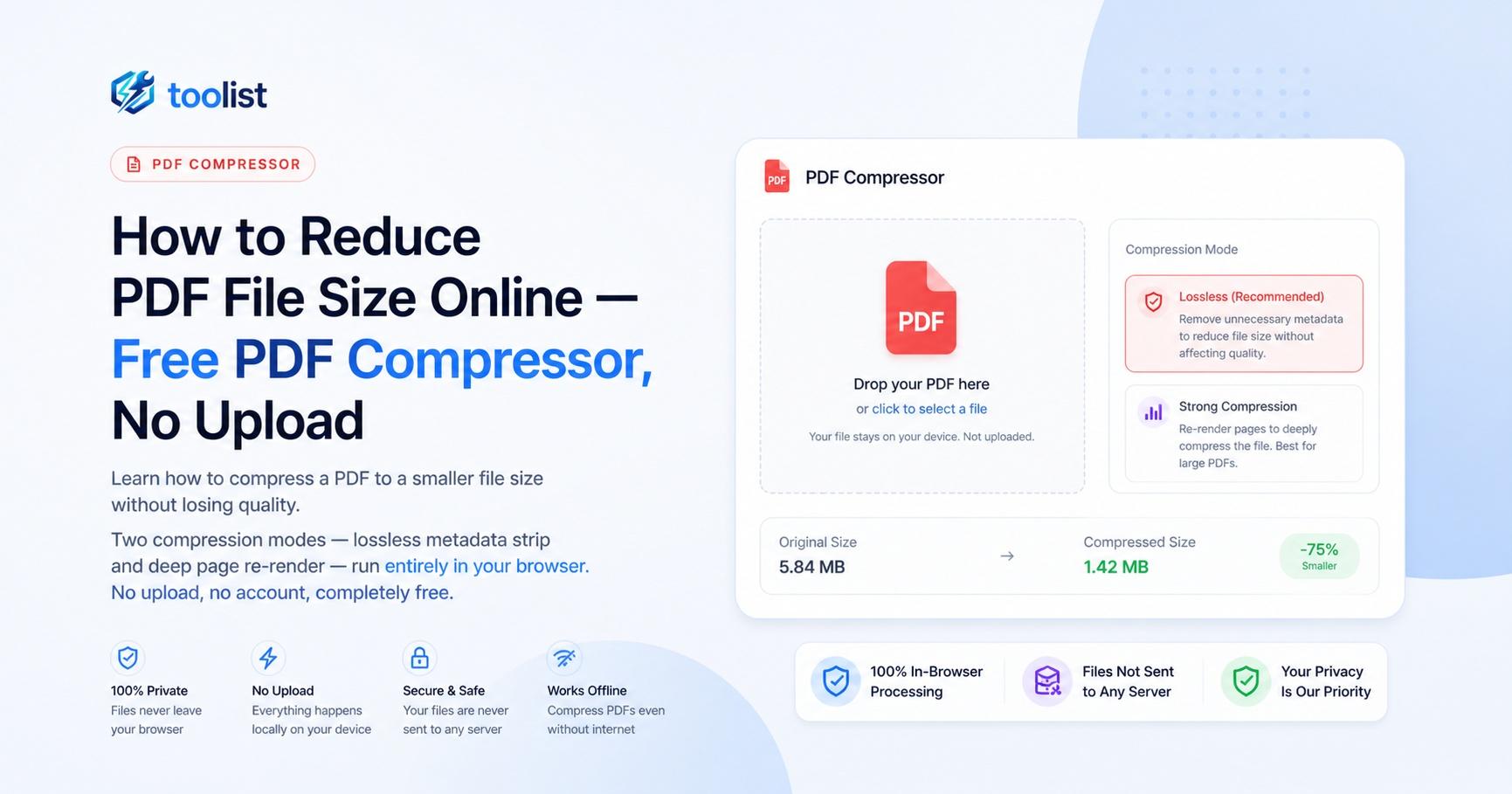
The PDF Compressor on Toolist solves both problems. It compresses PDFs directly in your browser — no upload, no account, no waiting for a server response — and it gives you two distinct compression modes with clear explanations of what each one does.
Why file size matters and why most approaches fail
A 30 MB scanned medical report, a 15 MB tax return, or a 8 MB CV with high-resolution graphics — these are the files that refuse to go through email, hit portal upload limits, or fill up shared drives. The common workarounds people try:
- Printing and re-scanning at lower resolution (loses quality, wastes time)
- Screenshotting pages and rebuilding the PDF (destroys the original structure)
- Using an online tool that uploads your file to an unknown server (fine for a recipe, not for a salary slip)
A proper browser-based compressor is faster than any of those and keeps your file private.
Two compression modes — pick the right one
Not all PDFs compress the same way, and using the wrong mode can make a file larger or damage text quality unnecessarily. The tool offers two modes with different trade-offs.
Metadata Strip — lossless, instant, no quality change
Every PDF carries invisible embedded data: the application that created it, the author's name, creation and modification dates, XMP metadata, and producer information. None of this is visible to the reader, but it adds weight to the file.
Metadata Strip removes this hidden data without touching any page content — text, images, fonts, or layout are completely untouched. The result is lossless: the PDF looks and reads identically to the original.
Typical reduction: 5–20% — less dramatic than re-rendering, but it is instant, completely safe, and works on every type of PDF.
Use this when:
- your PDF was created in Word, Excel, PowerPoint, or a design tool like InDesign or Illustrator
- you need to preserve text searchability and copy-paste
- you want a quick reduction without any risk
Re-render Pages — deep compression, 40–80% smaller
Re-render converts each page of the PDF to a JPEG image and rebuilds the PDF from those images. This is effective because scanned PDFs already store pages as images — re-compressing them with a better JPEG encoder reduces the file substantially.
Three quality presets give you control:
- High (150 DPI, 88% JPEG quality) — recommended for documents that need to stay readable and printable. Text remains clearly legible.
- Medium (100 DPI, 80% JPEG quality) — good for sharing via email or messaging apps. Still very readable on screen, slightly soft if printed large.
- Small (72 DPI, 70% JPEG quality) — maximum compression for upload portals with strict limits. Screen use only, not suitable for printing.
Use this when your PDF is a scan — pages that are already images compress extremely well through re-rendering. A 20 MB scanned tax document can become 4–5 MB at High quality, or under 2 MB at Small.
Do not use Re-render on PDFs created in Word or Excel. Vector text and graphics are more efficiently stored in their original form. Re-rendering them as JPEGs almost always produces a larger file, not a smaller one. The tool shows you the before-and-after size before you download, so you can catch this before committing.
See the result before you download
One thing that separates this tool from most online compressors: it shows you the exact before and after file size — and the percentage saved — before you download. If the result is not what you wanted, you can switch modes and compress again without leaving the page.
This before-and-after preview is the step most tools skip. Without it, you download a file, check the size, find it is not small enough, and start the whole process again. Here that comparison is part of the workflow.
Step by step: compress a PDF
- Open the PDF Compressor.
- Drop your PDF onto the upload area, or tap Choose PDF to browse. The page count and current file size display immediately.
- Choose a mode: Metadata Strip for lossless compression, or Re-render Pages for maximum reduction.
- For Re-render, select a quality preset: High, Medium, or Small.
- Click Compress PDF. Metadata Strip finishes instantly. Re-render shows a per-page progress bar.
- When complete, the before-and-after size comparison appears. Check whether the result meets your needs.
- If the compressed file is larger than the original (which can happen with Re-render on vector PDFs), switch to Metadata Strip and compress again.
- Click Download to save the compressed PDF.
Common use cases
Compressing a scanned ID or document for an application portal Many government portals and university admission systems cap uploads at 500 KB, 1 MB, or 2 MB. A phone camera scan is often 3–8 MB. Re-render at Small quality typically brings a scan down to well under 1 MB while keeping the text and stamps legible on screen.
Reducing a work report or presentation for email Email services typically cap attachments at 10–25 MB. A PDF of a PowerPoint presentation with embedded images can easily exceed that. Start with Metadata Strip — it is instant and lossless. If still too large, try Re-render at High quality.
Compressing confidential documents (medical, legal, financial) Because compression happens in your browser, confidential content — salary slips, medical reports, legal agreements — never travels over the internet to an external server. You can compress sensitive documents with the same confidence you would have working in a desktop application.
Shrinking a PDF for WhatsApp or Telegram Messaging apps often cap file sharing at 10–16 MB. A scanned lease agreement or notarized affidavit can exceed that. Re-render at Medium quality gets most scanned documents well under 5 MB.
What to do if the PDF is password-protected
Password-protected PDFs cannot be processed — the tool will show an error. Remove the password protection first (in Adobe Acrobat, a PDF reader, or a password-removal tool), then compress the unlocked file.
After compressing — other tools you might need
If you need to combine the compressed PDF with others, use PDF Merge. If you need to remove or reorder pages before compressing, use PDF Page Organizer. If you want to split the PDF into smaller individual files instead of compressing it, use PDF Split.
All of these tools work the same way — in your browser, without uploading your files.