
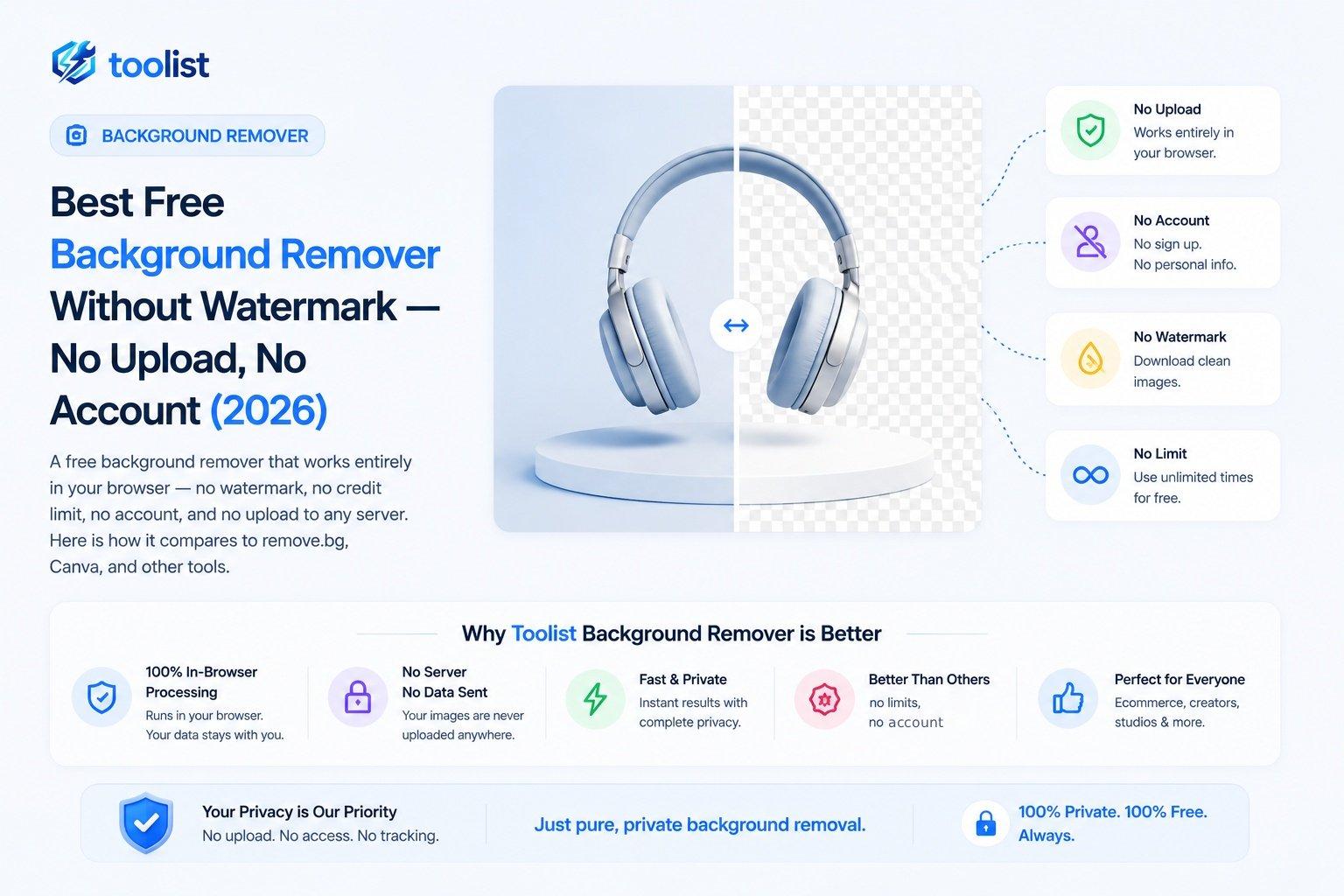
Finding a truly free background remover without a watermark is harder than it sounds. Most tools that show up in search results are free only in name — you get a blurry preview, a watermark stamped across the download, or a hard limit of three images before a paywall appears. After using a few of them and getting burned each time, I went looking for something that genuinely had no catches.
What I found is a tool that runs entirely inside the browser. No watermark. No upload. No account. No daily cap. This post explains how it works, why the no-upload part matters more than people realise, and how it stacks up against the popular alternatives.
The Hidden Cost of "Free" Background Removers
When a background remover is free on the surface, the cost is usually one of these:
Watermarks. The downloaded image has the tool's logo or text stamped on it, making it unusable for anything professional without paying to remove it.
Resolution locks. You can preview the result at full quality, but downloading at full resolution requires a paid plan or credits. The free tier gives you a compressed, downscaled version.
Credit systems. You get 3 free images per month, or 5 per day. Enough to test the tool, not enough to actually use it.
Your photo on their servers. The image is uploaded, processed, and potentially retained. For ID photos, personal portraits, or any sensitive image, that is a meaningful privacy concern.
The tool I use — Toolist Background Remover — avoids all of these. The AI runs in your browser using WebAssembly, which means there is no server, no upload step, and therefore no business model built around upselling you on the very thing you came to do for free.
How the Browser-Based AI Works
When you open the tool and drop a photo, the browser downloads a small AI model (~4.7 MB for General mode, smaller for Portrait). This model is the same kind of neural network that powers server-side tools — it analyses the image, identifies the subject, generates a mask, and removes the background.
The difference is that this all happens on your CPU or GPU, locally. The image data never leaves your machine. After the first use, the model is cached in your browser, so return visits load and process faster.
This is the same approach a native app would use — except nothing needs to be installed.
What Makes This Tool Different
No watermark, ever
The download is a clean PNG with a transparent background (or a solid colour if you set one). There is no logo, no text overlay, no promotional stamp. What you see in the preview is exactly what you download.
No upload
Your photo stays on your device from start to finish. This matters most for:
- ID and document photos (passport, Aadhaar, PAN, visa)
- Private or sensitive personal images
- Client photos you process on someone else's behalf
- Business product images you have not yet published
Uploading a photo to a third-party server means it is out of your control — even if the service claims to delete it immediately.
No account required
Open the page and start. No email, no Google sign-in, no trial period that expires. The tool does not know who you are and does not need to.
No daily or monthly limit
Process one photo or a hundred in a session — there is no cap. After the first photo loads the AI model, every subsequent photo in the same session processes without any additional load time.
Two purpose-built AI modes
Portrait mode is specifically trained on people. It understands the fine structure of hair, the boundary between skin and background, and the soft edges of loose clothing. This is why it outperforms general-purpose tools for headshots and selfies.
General mode handles everything else — products, animals, logos, food, objects. When you drop a product photo on the General panel, the AI identifies the most visually prominent subject and removes everything else.
Picking the right mode before you upload makes a measurable difference in edge quality, especially around hair and fine details.
Comparing the Main Free Options
| Feature | Toolist BG Remover | remove.bg (free) | Canva (free) | Photoscissors (free) | |---|---|---|---|---| | Watermark on download | None | None (low-res only) | None | Yes | | Full resolution free | Yes | No (preview only) | Yes (limited) | No | | Upload to server | Never | Yes | Yes | Yes | | Account required | No | No | Yes | No | | Monthly/daily limit | No | Yes | Yes | Yes | | Works offline after first load | Yes | No | No | No | | Portrait + General modes | Yes | One mode | One mode | One mode |
remove.bg is the most well-known tool in this space. It produces excellent results — but the free tier only lets you download at low resolution (around 0.25 MP). Full resolution requires a paid plan or credits. Your photo is also uploaded to their servers.
Canva has a background remover built into its editor, but it requires an account and caps background removals on the free plan. Images are processed on Canva's servers.
Photoscissors offers a free tier but watermarks the download unless you pay. It also uploads images server-side.
None of these are bad tools — for the right use case, they each have strengths. But for someone who needs unlimited, watermark-free, private background removal on a regular basis, the browser-based approach is a different category of tool.
Edge Quality Controls (What Other Free Tools Skip)
Most free tools give you the result and let you take it or leave it. Toolist Background Remover has an Adjust panel with controls that let you improve the result without re-running the AI:
- Soft / Sharp / Smooth+ — three edge modes. Soft gives feathered edges ideal for hair. Sharp gives hard binary cutouts. Smooth+ adds a blur pass for seamless blending over a new background.
- Cutoff slider — controls how aggressively the AI sets the boundary between subject and background.
- Softness slider — controls how much the edge fades vs. stays crisp.
These controls are post-processing on top of the AI mask, so they are instant — no re-upload, no waiting for a server response.
Matte Preview and Baked Downloads
After removing the background, tap Matte to preview your cutout on a colour:
- Transparent (default)
- White
- Light Gray
- Soft Blue
- Cream
- Black
- Any custom colour via the colour picker
When you choose a colour and download, that colour is baked into the PNG. You get a flat image on that background — ready to use directly in a form, listing, or presentation — not a transparent PNG you then have to flatten yourself.
This is particularly useful for passport photos (white background) and e-commerce listings (white background for Amazon and Flipkart).
When It Works Best
The clearest results come from photos where:
- The subject is well-lit with even light from the front
- There is good contrast between subject and background
- The background is not the same colour or tone as the subject
Portrait mode handles even busy or cluttered backgrounds well for people. General mode works best when the product clearly stands out from its surroundings.
When It Struggles
No browser-based tool is perfect. Expect weaker results for:
- Very fine, wispy hair in backlit or windy conditions
- Transparent or semi-transparent subjects (glass, water, sheer fabric)
- Products that closely match the background colour (white shoes on a white table)
- Very small subjects in a large frame — try cropping tighter before processing
For these cases, the Adjust sliders can recover a usable result, or trying the other mode gives a different result to compare.
The Bottom Line
If you are regularly removing backgrounds from photos — whether for social media, profile pictures, passport documents, or personal projects — and you keep running into watermarks, credit limits, or privacy concerns, a browser-based tool solves all three problems at once.
No watermark. No upload. No account. No limit.