
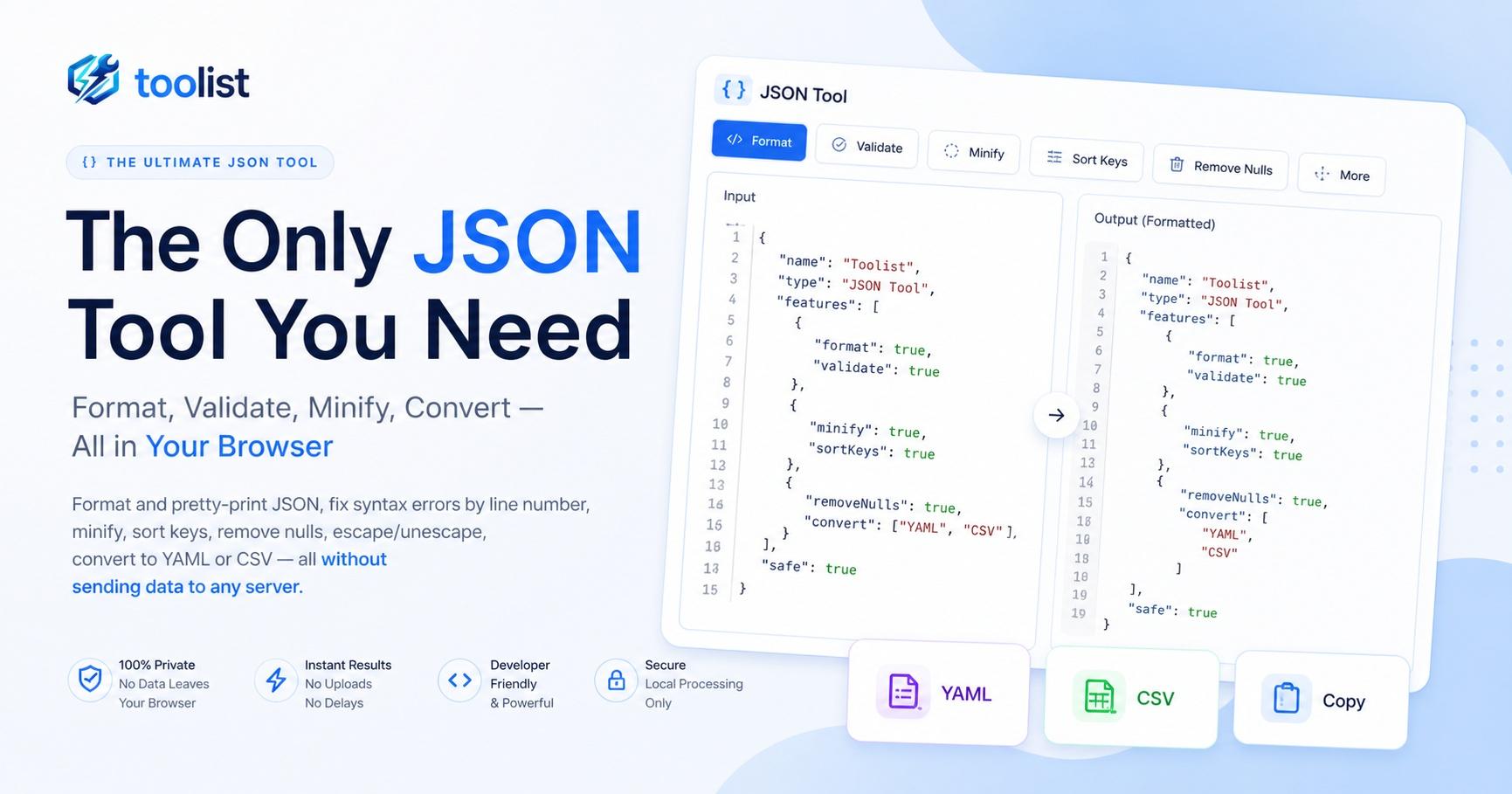
Working with JSON every day as a developer means you spend a surprising amount of time on things that should be instant: prettifying a response to read it, tracking down where a syntax error is hiding, normalising two payloads before diffing them, or reformatting a JSON blob to paste into a Kubernetes manifest.
The JSON Formatter, Validator & Minifier on Toolist was built to make all of those tasks instant — in your browser, with no data leaving your machine.
Why another JSON formatter?
Type "json formatter" into Google and you get dozens of options. Most of them share the same limitation: they are built on a plain <textarea>. No line numbers. No editor features. When something breaks, you get "unexpected token at position 1847" and then you count characters manually.
The Toolist JSON tool is built on a full code editor in the browser — the same Monaco editor that powers VS Code. That changes what's possible. You get real line numbers, syntax highlighting, JSON folding, find and replace, bracket pair colourisation, and a minimap. Then on top of that editor foundation, the tool adds a full suite of JSON-specific operations that cover the real problems developers hit every day.
Everything runs client-side. Your JSON never leaves your browser.
Format: pretty-print JSON the right way
Click Format and your raw, compressed, or mangled JSON becomes a cleanly indented, human-readable document. You can choose the indentation style: 2 spaces (the JavaScript convention), 4 spaces (common in configs and Python-adjacent tooling), or Tab (required by some linters and Makefiles).
Format is not just for humans — it is the first step before diffing two API responses, before reading a deeply nested config, and before committing a JSON file to a repository where your team will need to review it.
Validate: find errors before they find you
Real-time validation runs as you type. A green ✓ label in the status bar confirms your JSON is valid. The moment a syntax problem appears, it flips to a red ✗ with the human-readable error message and the exact line number.
The critical difference from other tools: you don't just get an error message — you get a Go to line button. Click it and the editor cursor moves to the exact problematic character and scrolls it into view. Red underlines appear at the error location in the editor itself. Hover over them to see the error tooltip inline, exactly like an IDE.
No more unexpected token at position 3,412 and then hunting through hundreds of lines manually.
Minify: smallest possible JSON for APIs and storage
Minify strips all whitespace, indentation, and newlines from your JSON to produce the most compact valid representation. This is the format JSON should be in when:
- you are sending it as an API request body
- you are storing it in a database field
- you are embedding it in an environment variable or config string
- you need to shave bytes off a network payload
One click. No server round-trip, no paste-and-wait.
Sort Keys: normalise before diffing
The Sort Keys toggle recursively alphabetises every object key in the JSON tree at every nesting depth. Array order is always preserved — only object keys are sorted.
This is the feature I use most when comparing two API responses. Without sorted keys, a diff between two otherwise-identical payloads can show dozens of false-positive changes just from field reordering. With Sort Keys, you get a clean diff where only the genuine differences show up.
It is equally useful before committing JSON configs to a repository — sorted keys mean unrelated key reorders don't pollute your git history.
Remove Nulls: clean up sparse payloads
Remove Nulls traverses the entire JSON tree and strips every key-value pair where the value is null. It works at every nesting level recursively.
The use cases are concrete:
- clean up a database query result before returning it from an API endpoint
- strip unpopulated optional fields from a payload before it reaches a client that does not handle
nullgracefully - reduce payload size when your service returns sparse records with many optional fields
Combine Sort Keys and Remove Nulls in a single Format pass — both toggles apply together.
Escape and Unescape: embed JSON inside strings
This is the feature that saves the most time for the least-celebrated problem in developer workflows.
Escape takes whatever is in the input and wraps it as a JSON string literal — all internal double quotes become \" and newlines become \n. So {"key":"value"} becomes "{\"key\":\"value\"}". This exact format is required for:
.envfile values:MY_CONFIG="{\"apiUrl\":\"https://...\"}- YAML string fields that embed JSON: wrapping the JSON in a quoted YAML value
- SQL INSERT statements where a JSON column value has to be a string literal
- Shell variables and curl
--dataarguments
Unescape reverses the operation — paste an escaped JSON string literal (outer quotes included) and get the structured JSON back. Essential when reading logs or environment dumps where the JSON was stored escaped.
Convert to YAML: one click to Kubernetes-ready config
Click → YAML and the tool converts your JSON to clean, idiomatic YAML. The output is ready for:
- Kubernetes manifests (
Deployment,Service,ConfigMap) - GitHub Actions workflow files
- Docker Compose files
- Helm values files
- Any config system that prefers YAML over JSON
The conversion handles nested objects, arrays, booleans, numbers, and null values correctly. Multi-line strings are preserved. And since it runs in the browser, there is no server waiting for your payload.
This is a step I used to do by copying JSON into an online converter, waiting for a page load, then copying the output. Now it is one button press in the same window I am already working in.
Convert to CSV: from API response to spreadsheet in one click
Click → CSV and the tool detects whether your JSON is an array of objects — the standard format returned by REST list endpoints and database queries. If it is, it exports a comma-separated table where the column headers come from the first object's keys.
The result opens directly in Excel, Google Sheets, or any data analysis tool. This is the fastest way to go from a raw API response to a spreadsheet without any middleware or scripting.
Nested objects and arrays inside values are serialised as JSON strings in the CSV cell, so structure is preserved rather than silently dropped.
A code editor in your browser — features plain formatters can't match
The Monaco editor foundation gives the tool a class of features that no textarea-based formatter can offer:
Line Numbers — every line is numbered, matching your terminal and IDE. When a colleague says "error on line 247" or when your API log points to a position, you navigate there instantly.
JSON Folding — click the ▶ arrow in the gutter next to any { or [ to collapse the entire node. Unfold only the section you need. Right-click and choose "Fold All" to collapse every node at once for a high-level overview of a large document.
Find & Replace — Ctrl+F opens the search panel inside the editor. Ctrl+H opens find & replace. Change a key name or value across a large JSON file in seconds. Regex is supported for advanced patterns.
Syntax Highlighting — keys, strings, numbers, booleans, and nulls each have distinct colours. Bracket pair colourisation makes deeply nested structures readable at a glance.
Minimap — a zoomed-out overview of the document appears on the right edge of the editor. Click anywhere on the minimap to jump to that section of a large file without scrolling.
Go to Error — not just a message, but a cursor-moving, scroll-jumping action that puts you at the exact broken character.
File workflow: drop a file, download the result
Drag a .json file from your file explorer and drop it directly onto the input editor area. The contents load instantly — no file picker dialog, no upload progress bar, no size limit beyond your device memory.
After any operation, click Save to download the result with the correct file extension automatically set: .json for formatted or minified output, .yaml for YAML conversion, .csv for CSV export. Click Copy to send the output to your clipboard instead.
Real developer workflow: how I actually use this
Here is how this tool fits into a real debugging session:
- Copy a raw JSON response from a browser network tab or a curl command — it is a single dense line
- Paste it into the input editor — real-time validation immediately confirms it is valid (or shows the error)
- Click Format — the document becomes readable with line numbers and syntax highlighting
- Enable Sort Keys, then Format again — now the output is normalised for a diff
- Open the second API response in a new tab of the same tool, format and sort it
- Diff the two outputs — only real differences show up, not field order noise
Or for a Kubernetes config migration:
- Paste the existing JSON config
- Remove Nulls to clean up optional fields
- Click → YAML — get a clean, deployment-ready YAML manifest
- Click Save — download the
.yamlfile
The key point is that every step happens in the same tool, in the same browser tab, and nothing touches a server.
Privacy: why browser-only matters
Most online developer tools send your data to a server — it is the easiest architecture to build. Your API keys, internal service configurations, database connection strings, and private customer data all go through someone else's infrastructure.
This tool does not do that. The Monaco editor, the JSON parser, the YAML converter, the CSV exporter — every library loads once from a CDN and is then cached by your browser. After that, everything runs on your device. Your JSON content is never transmitted anywhere.
That matters most in the moments when you need a JSON tool the most: when you are debugging a production incident and copying live response payloads, when you are working with a config file that contains credentials, or when your company's security policy prohibits pasting internal data into external services.
Browser-only is not a compromise. It is the only privacy model that actually keeps your data private.
How to use the JSON Formatter, Validator & Minifier
- Open the JSON Formatter, Validator & Minifier.
- Paste JSON into the Input editor on the left, or drag and drop a
.jsonfile directly onto the editor area. - Watch the status label — a green ✓ means valid JSON; a red ✗ means a syntax error with the line number shown.
- If there is an error, click Go to line to jump the cursor directly to the problem.
- Use Ctrl+F to search inside either editor. Use Ctrl+H to find and replace in the input editor.
- Click the ▶ fold arrows in the gutter to collapse large objects or arrays.
- Choose your indent size (2 spaces, 4 spaces, or Tab) from the selector, then click Format to prettify the output.
- Enable Sort Keys to alphabetise all object keys recursively. Enable Remove Nulls to strip null values. Either or both can be combined with Format or Minify.
- Click Minify to produce the most compact valid JSON.
- Click Escape to wrap the input as an escaped string literal, or Unescape to unwrap one.
- Click → YAML to convert to YAML, or → CSV to export an array of objects as a spreadsheet table.
- Click Copy to copy the output to clipboard, or Save to download the output file.
- Click Reset to clear both panels and start fresh.
The tool in one sentence
If you work with JSON and you want a single browser tab that handles formatting, validation, error navigation, minification, key sorting, null removal, escaping, YAML conversion, and CSV export — without sending your data anywhere — this is it.