
Converting a PDF to images is one of those tasks that sounds simple but turns into a frustrating detour without the right tool. You need a page from a report as an image for a presentation. You want to thumbnail a document for a website. You need print-ready image files from a PDF that a client sent. You want to extract a diagram from a PDF and use it in another document.
The options you usually run into are: install desktop software, find an online tool that makes you upload files to a stranger's server, or screenshot pages manually and crop them to size.
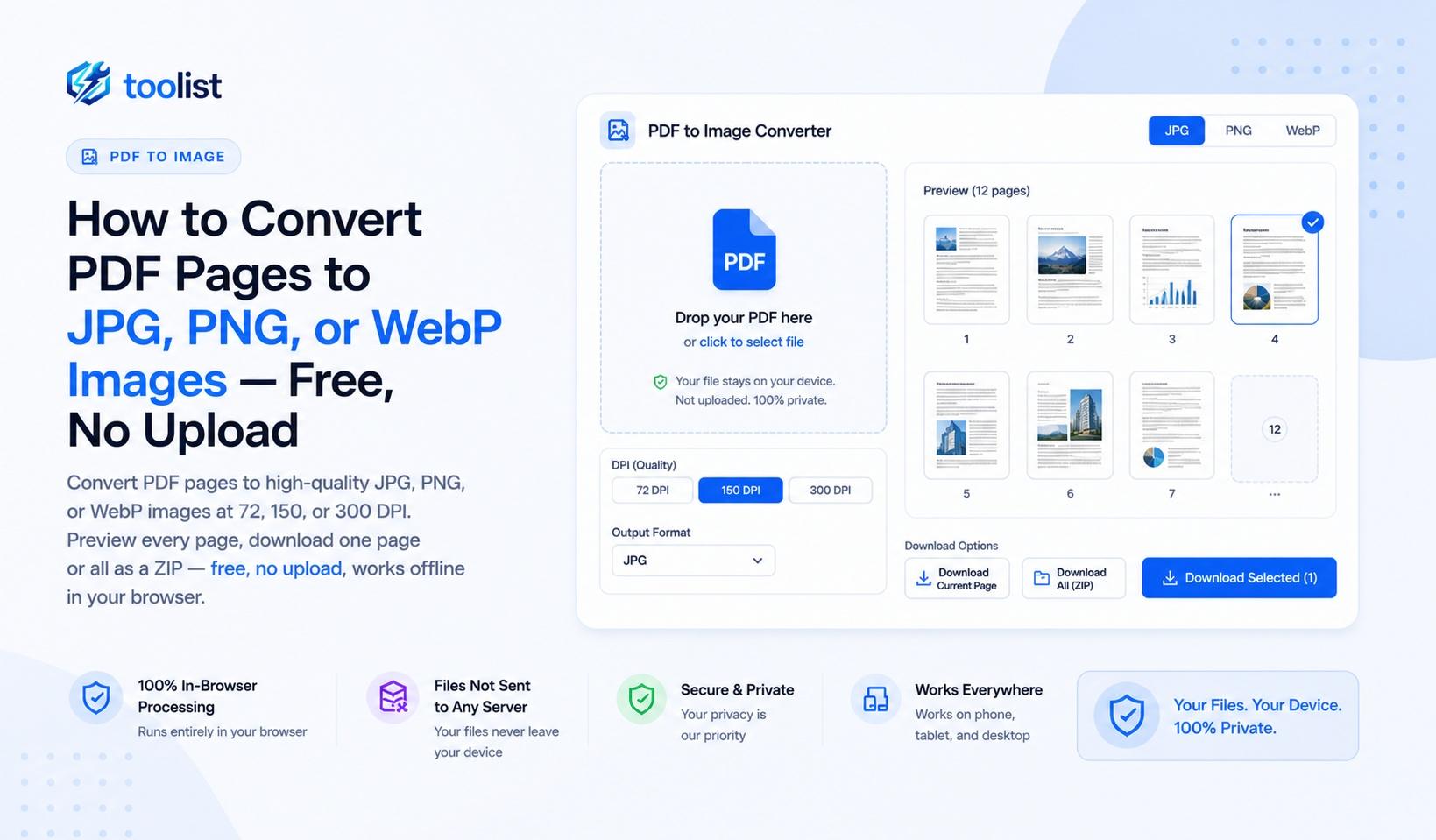
The PDF to Images tool on Toolist converts PDF pages to JPG, PNG, or WebP images directly in your browser — at your chosen resolution, with a live preview, with no upload, and with the ability to download one page or all pages at once.
Format matters: JPG, PNG, or WebP
Choosing the right image format for your use case makes a meaningful difference in file size and quality.
JPG — smallest files, best for photos and complex pages
JPG (JPEG) uses lossy compression that is highly effective on photographic content. For a PDF that contains photographs, scanned documents, or mixed-content pages with complex colour gradients, JPG produces the smallest output files with very little visible quality difference at high quality settings.
JPG does not support transparency. If your PDF has transparent areas, they will be rendered on a white background.
Use JPG for: presentations, email attachments, social media, general-purpose image exports.
PNG — lossless, best for diagrams, text, and transparency
PNG is a lossless format — every pixel is preserved exactly. This makes it the right choice for PDFs with sharp-edged diagrams, line art, logos, or text-heavy content where fine edges matter. PNG also supports transparency, so if a PDF page has a transparent background, the exported PNG will preserve it.
The trade-off is file size: PNG files are larger than JPG for photographic content. For diagram-heavy technical documents, the quality advantage is usually worth it.
Use PNG for: technical diagrams, architectural drawings, logos, charts, anything where edge sharpness matters.
WebP — modern format, excellent compression
WebP is a modern image format that produces files smaller than JPG at equivalent visual quality. All modern browsers and most image editing tools support it. For web use specifically — embedding PDF content in a website, blog post, or web app — WebP is the most efficient choice.
Use WebP for: web pages, web apps, modern presentation tools, anywhere file size on the web matters.
Resolution in DPI — understanding your options
DPI (dots per inch) controls how many pixels the tool renders for each inch of the original PDF page. Higher DPI means more pixels, sharper output, and larger file sizes.
72 DPI — screen display and web
72 DPI is the standard screen pixel density and the baseline for web images. Output at 72 DPI is compact and loads quickly. Text is legible on screen at normal zoom. This is not suitable for printing.
An A4 page at 72 DPI: approximately 595 × 842 pixels.
Use 72 DPI for: website thumbnails, email previews, chat and messaging, document preview images, web app displays.
150 DPI — presentations and standard printing
150 DPI is the practical sweet spot for most uses that aren't dedicated print production. Images at this resolution are sharp enough for PowerPoint and Google Slides at full screen, for standard office printers at A4, and for most social media platforms.
An A4 page at 150 DPI: approximately 1240 × 1754 pixels.
Use 150 DPI for: presentation slides, social media posts, standard A4 document printing, general-purpose image exports.
300 DPI — professional print quality
300 DPI is the resolution required by professional printing services for high-quality output. Magazines, posters, brochures, and print-on-demand services typically require 300 DPI at the final print size. At this resolution, text is razor sharp and photographic content is indistinguishable from a native photograph.
An A4 page at 300 DPI: approximately 2480 × 3508 pixels.
Use 300 DPI for: professional print production, publication layouts, archiving, high-resolution digital display.
Preview and download one page or all pages
Once you select a format and DPI, all pages render as thumbnails you can inspect before downloading. Hover over any thumbnail — a download icon appears. Click it to save just that single page without downloading anything else.
When you are ready to save everything, click Download all as ZIP. All pages convert at your selected settings and download as a ZIP archive with each image named by its page number.
This single-page download feature is surprisingly useful: you just need one chart from a 40-page report, or the map from page 7 of a travel guide, or the signature block from the last page of a contract. Click one download button, done.
Step by step: convert a PDF to images
- Open the PDF to Images tool.
- Drop your PDF onto the upload area or tap Choose PDF.
- Wait for page thumbnails to render. A progress bar tracks each page.
- Choose your output format: JPG, PNG, or WebP.
- Choose a DPI setting: 72 DPI for screen use, 150 DPI for presentations, 300 DPI for professional print.
- For JPG or WebP, adjust the quality slider if needed (92% is the recommended default).
- Hover over any thumbnail and click the download icon to save just that one page.
- Click Download all as ZIP to convert all pages and download them bundled in a ZIP.
Real use cases for PDF-to-image conversion
Using PDF content in a presentation You have a research report or financial analysis as a PDF. You want a few pages as slides. Export at 150 DPI as JPG, drop the images into PowerPoint or Google Slides, and your charts and tables appear at full quality without any text reformatting.
Sharing a PDF page on social media LinkedIn, Twitter, Instagram, and most social platforms do not accept PDF uploads for posts. Convert the relevant page to JPG at 72 or 150 DPI, and you have a shareable image in the right format for any platform.
Creating print-ready artwork from a PDF A designer sends you a PDF proof for a poster, flyer, or brochure. You need image files for the printer. Export at 300 DPI as JPG or PNG and hand those files to the print service.
Archiving PDF pages as images Some document management systems store images rather than PDFs. Convert the PDF at 150 or 300 DPI and archive the pages as individual image files.
Converting a scanned document for use in another application An OCR tool, an image editing app, or a document management workflow might require JPG or PNG input rather than PDF. Export the scanned pages at 150 DPI and they are ready for the next step.
Embedding a PDF chart or table in a Word document Copy-pasting from a PDF rarely works well. Export the specific page as a PNG at 150 DPI, insert it as an image in Word, and the chart or table looks clean at any zoom level.
No upload — why this matters for document privacy
PDF-to-image converters are especially common as server-side tools because the conversion requires significant processing power — or so it used to seem. The browser's Canvas API is now powerful enough to handle this locally.
Your PDF content — a confidential medical report, a legal brief, a private financial statement — stays in your browser's memory and is never sent anywhere. The images are generated on your device and downloaded directly to your device.
After converting — what's next
If the images need to go back into a PDF, use Images to PDF to combine them into a new document. If the original PDF was too large to work with conveniently, compress it first and then convert. To extract specific pages as PDFs rather than images, PDF Split is the right tool.