
If you need to send invoices, estimates, or proformas regularly but do not want to sign up for yet another billing app, the Invoice Generator on Toolist is a practical alternative. It is free, runs entirely in your browser, and keeps all your business data on your own device.
This guide walks you through what the tool offers, how to set it up in a few minutes, and how to make it work reliably for repeated daily use.
What is the Toolist Invoice Generator
The Invoice Generator is a browser-based billing tool that lets you create, manage, and download professional invoices — including GST-compliant tax invoices for India.
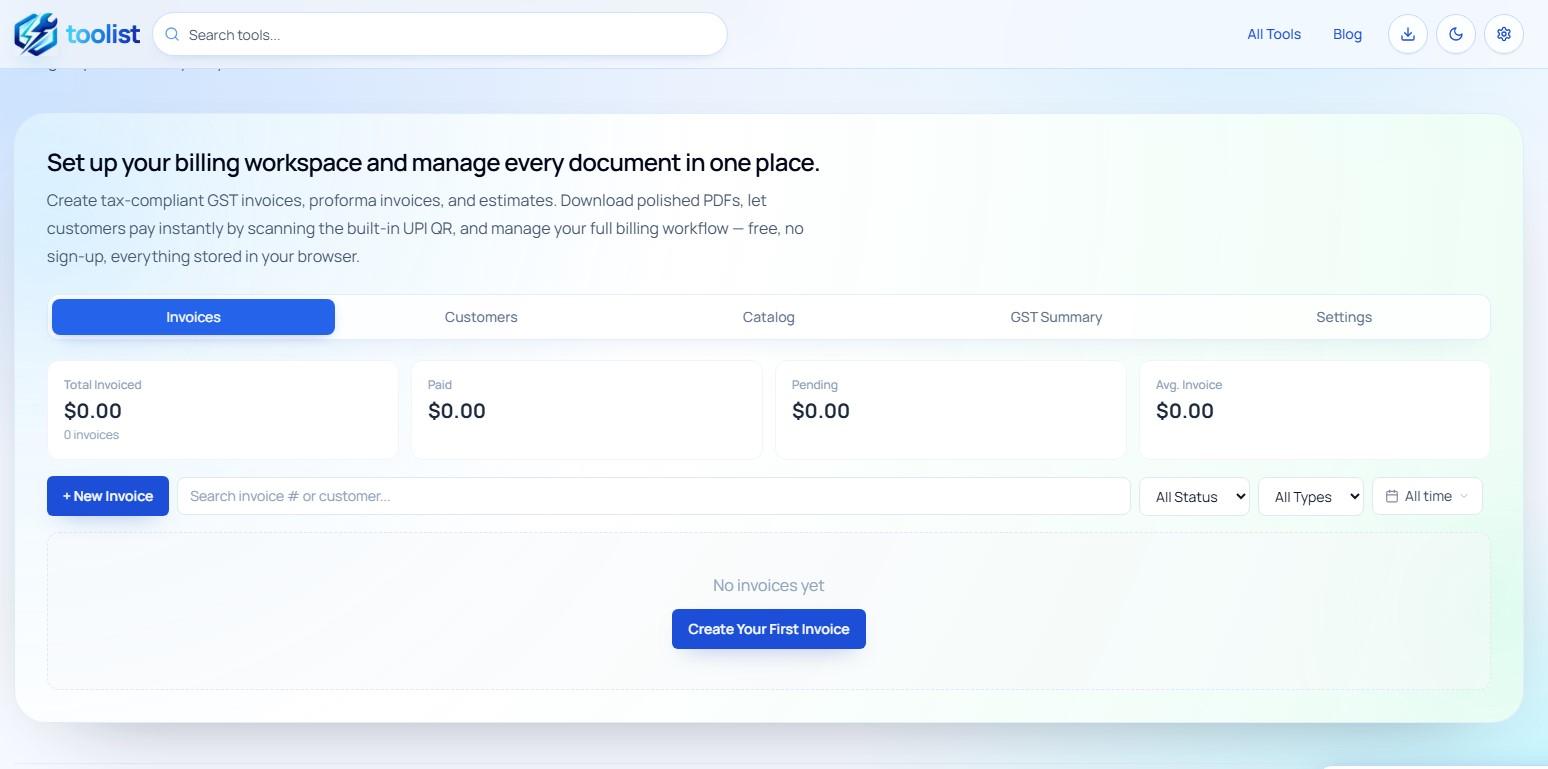
It is built as a complete Indian GST invoice generator — handling CGST + SGST for intrastate supplies and IGST for interstate supplies automatically, with support for HSN and SAC codes, place of supply, and a month-wise GST summary for filing. It also works for non-GST businesses and supports multiple currencies for international use.
It covers the three most common document types businesses and freelancers send:
- Tax Invoice — a full GST invoice for standard sales and services
- Proforma Invoice — sent in advance to confirm an order or request payment before delivery
- Estimate or Quotation — a non-binding quote you send before a job is finalised
All three work the same way and produce a clean PDF that you can download and share with your client.
Why this tool is different — no account, no cloud, fully private
Most invoice tools ask you to create an account, store your data on their servers, and often limit the number of free invoices per month.
This tool works differently:
- No account or sign-up — open the link and start right away
- No server uploads — your business profile, customer list, item catalog, and all invoices stay in your browser only
- No invoice limits — create as many invoices as you need
- No subscription — the tool is free to use with no hidden charges
Your data lives in your browser's local storage (IndexedDB). It does not leave your device unless you choose to export a backup or download a PDF.
Setting up the tool in three steps
The first time you open the tool, a simple setup wizard walks you through the essentials. It takes about three to five minutes.
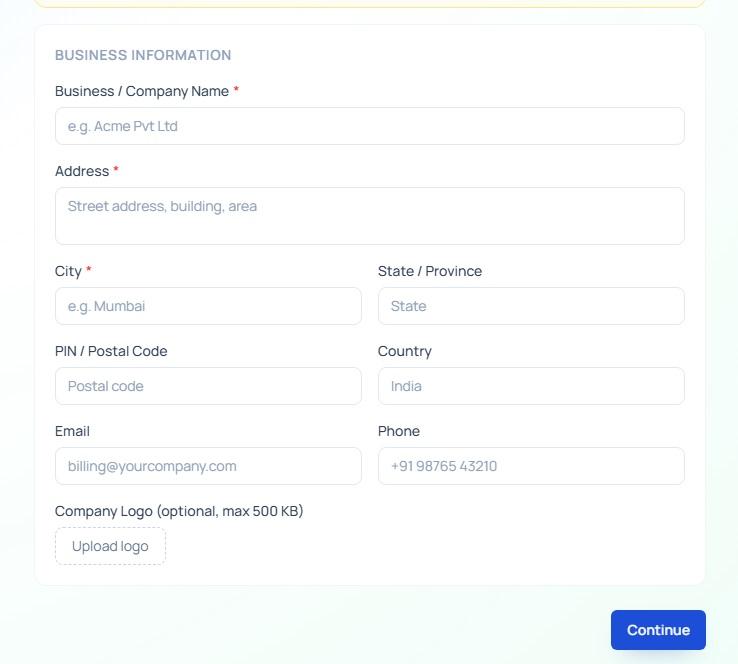
Step 1 — Business details
Enter your business name, address, GSTIN (if registered), PAN, email, phone, and website. The tool auto-detects your country from the browser locale and pre-selects an appropriate currency.
Step 2 — Business appearance
Upload your company logo (optional), choose the header colour for your invoices, and add a footer line (usually your website or phone number). You can also set default payment terms here — for example, "Payment due within 30 days of invoice date" — which will be pre-filled on every new invoice.
Step 3 — Bank and payment details
Add your bank name, account number, IFSC code, and UPI ID. The UPI ID is used to generate a payment QR code on unpaid invoices automatically, so your clients can pay by scanning — no payment gateway needed.
Once you finish, you land on the main dashboard where you can start creating invoices.
Understanding persistent storage — why it matters
Browsers occasionally clean up stored data to free up space, especially if the browser considers the data non-essential. This can silently delete your invoices and business profile.
To prevent this, the tool prompts you to enable persistent storage — a browser permission that tells your browser to protect this data from automatic cleanup.
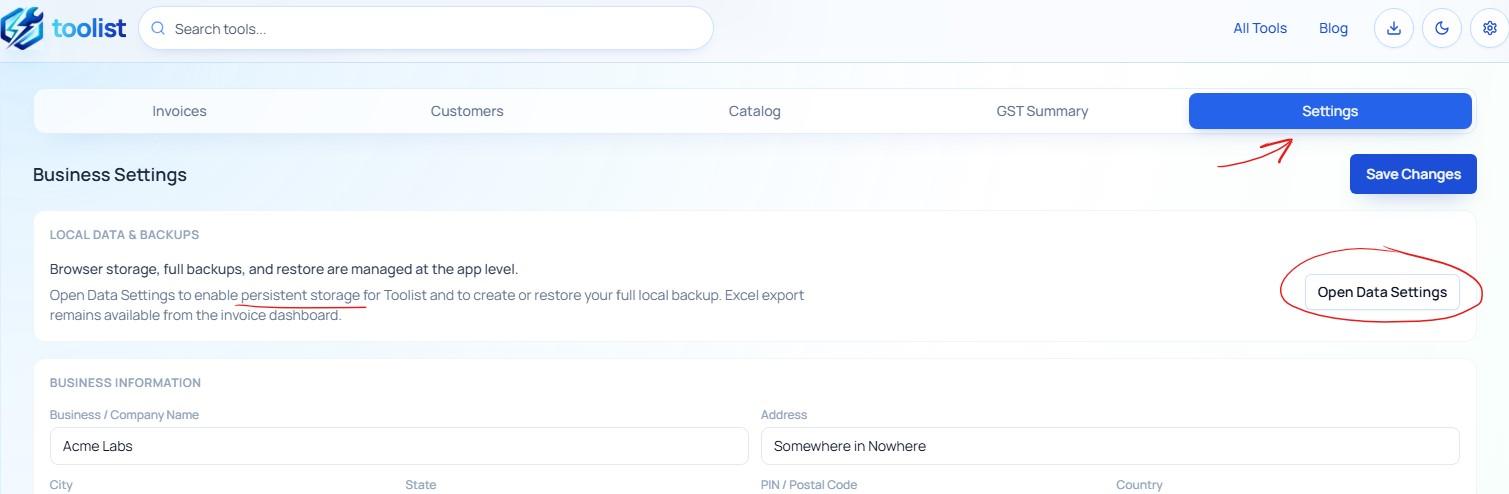
You can enable it from the banner on the dashboard or from the tool's settings page. It takes one click.
Installing the tool as a PWA for quick daily use
If you create invoices regularly, installing the tool as a Progressive Web App (PWA) on your device is the most convenient setup.
When installed as a PWA:
- The tool opens as a standalone app, no browser chrome around it
- It works from your home screen or app drawer like any other app
- Your data is better protected because PWA storage is treated differently from regular browser tabs
- It loads faster on repeated opens
To install, look for the "Install App" option in your browser's address bar or menu when visiting the tool. On Android, Chrome shows an "Add to Home Screen" prompt. On iOS Safari, use the Share menu and select "Add to Home Screen."
Once installed, you can open the invoice tool from your phone or desktop just like you would open any billing app — except all your data stays with you.
Backing up your data — and restoring it anywhere
Even with persistent storage and PWA installed, it is good practice to export a backup occasionally.
From the settings page inside the tool, you can:
- Export backup — downloads a JSON file containing your entire business profile, all customers, full item catalog, and every invoice you have created
- Import backup — restore from a backup file on any browser or device
The backup file includes a preview when you import: it shows your business name, how many invoices and customers are in the file, and the date range of your invoices before you confirm the restore.
This means you can move your setup from one device to another, or keep periodic backups just in case.
Who this tool works best for
The tool is practical for anyone who needs to send professional documents to clients but does not want the overhead of a full accounting platform:
- Freelancers — designers, developers, writers, photographers, and consultants who invoice clients project by project
- Small business owners — shops, service providers, and traders who need basic invoicing with GST
- Home-based businesses — tailors, tutors, bakers, and others who need a clean invoice without a complex setup
- Contractors and vendors — anyone who needs to issue a proforma or estimate before the work starts
If you are GST-registered and need to send tax invoices that include CGST and SGST or IGST breakdowns, the tool handles that too — covered in the next post in this series.
A quick note on what the tool does not do
This is not accounting software. It does not track expenses, manage payroll, or connect to your bank account. It is a focused billing tool — it helps you create professional invoice PDFs, keep a record of what is sent and what is paid, and manage a catalog of customers and items.
That focus is intentional. It keeps the tool fast, simple, and private.
Start with a simple setup
Open the Invoice Generator, complete the three-step setup, and you will have a working billing setup with your business details, logo, and GST information ready. From that point, creating a new invoice takes less than a minute.
The next post in this series walks through how to create invoices, choose a PDF template, work with your customer and item catalog, and handle GST correctly.